Image search audit: find the missing file, markup or mobile content

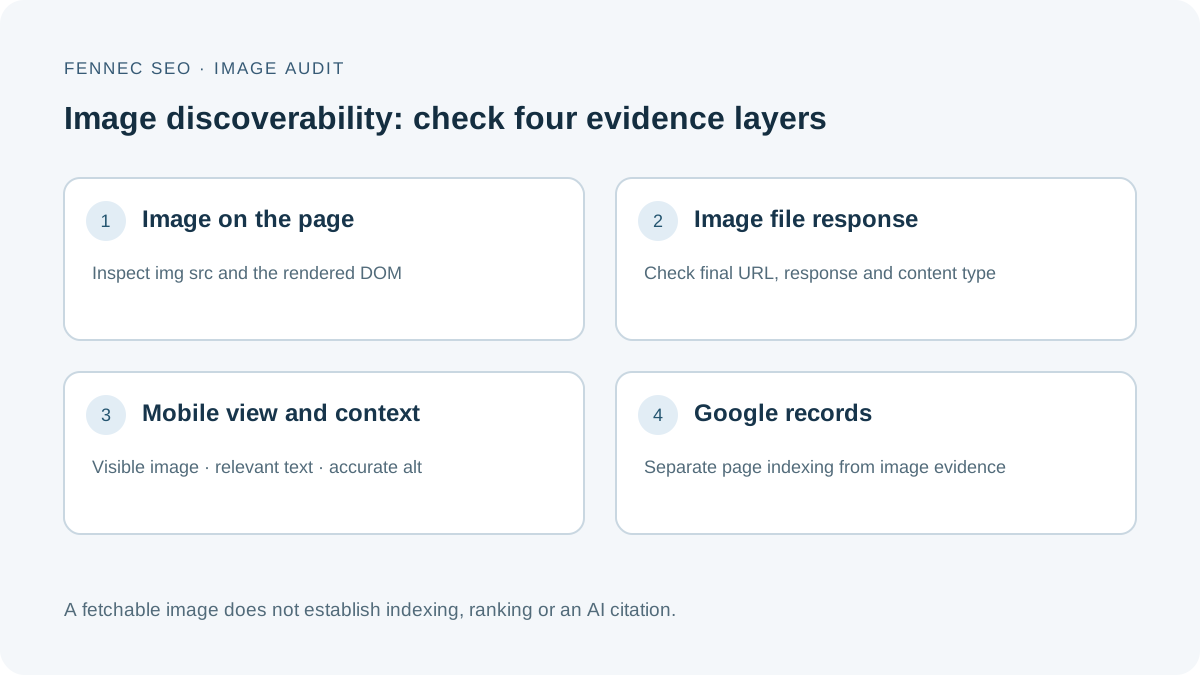
A product photo looks fine on your laptop. On a phone it disappears. Another page displays the same picture as a CSS background, while a third has an image element pointing to a missing file. “Add better alt text” will not fix all three.
Google’s October 1, 2026 coffee tutorial illustrates questions asked through Lens and live camera interaction. For a website owner, the useful starting point is more concrete: can the page expose a usable image and explain what it shows? The workflow below checks that foundation. It does not test Lens selection or promise an AI citation.
1. Reproduce four failures before auditing a whole site
On October 18, 2026, we opened four purpose-built local example pages in Chromium at 1280px and 390px viewport widths. Each uses the same 560 × 320 SVG cup illustration. The local pages carry noindex instructions and are not a Google indexing experiment.
| Example | HTML img elements | File response | At 390px | What the observation establishes |
|---|---|---|---|---|
| CSS background only | 0 | 200, SVG | Background visible | The illustration loads, but is not exposed through an HTML image element. |
| Missing image file | 1 | 404, plain text | Broken image | The markup names a file the server does not provide. |
| Hidden on mobile | 1 | 200, SVG | display: none | The file loads, but the image is not shown in the narrow layout. |
| HTML image with context | 1 | 200, SVG | display: block | This example exposes a working, visible image and a relevant caption. |
The missing file had a natural width of 0; the loaded image examples reported 560. The hidden image still loaded at 390px. A successful request and visible presentation are separate checks.
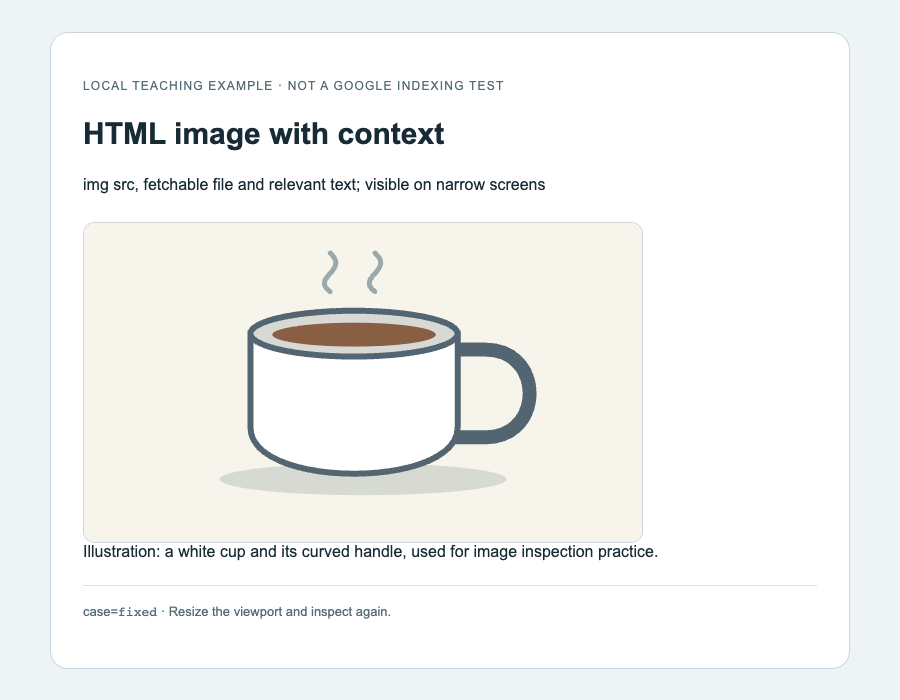
Local teaching example at 900 × 700, captured October 18, 2026. This is an illustrative asset and a browser check, not a customer result or Google search screenshot.
2. Inspect the image element, not just its appearance
Google’s image SEO documentation recommends standard HTML image elements; it says CSS images are not indexed. Inspect an important product or tutorial illustration in the rendered DOM.
For a content image, this is a useful starting point:
<figure>
  <img
    src="/images/white-cup-handle.jpg"
    alt="White ceramic cup with a curved handle"
    width="560"
    height="320"
  >
  <figcaption>The handle shape on the white cup.</figcaption>
</figure>
The JPEG path above is an example: replace it with an actual file. Reserve an empty alt attribute for genuinely decorative images. A product detail that carries information needs an appropriate textual alternative; the alt text guide explains that distinction.
Run this in DevTools Console on a public page to list HTML images:
console.table([...document.images].map(img => ({
  src: img.getAttribute('src'),
  selected: img.currentSrc,
  alt: img.getAttribute('alt'),
  loaded: img.complete && img.naturalWidth > 0,
  display: getComputedStyle(img).display
})));
This inventory is deliberately limited. It omits CSS backgrounds and does not detect every way an element can be offscreen, transparent, hidden by an ancestor or covered. Inspect those conditions separately. Lazy images may need normal scrolling before their loading state is meaningful.
For responsive images, compare the authored src with currentSrc, the browser-selected file. A correct desktop candidate does not prove the mobile candidate works. Keep a usable src fallback when using picture or srcset.
3. Verify the selected file’s response and access
Copy the exact image URL from the browser’s Network panel. Reload with the panel open, select the image request and record its final URL, status and Content-Type. Open the resource and confirm it is the expected image rather than an HTML challenge, login page or branded error.
A command-line GET can provide a second observation:
curl --location --silent --show-error --dump-header - \
  --output /dev/null 'https://example.com/images/white-cup-handle.jpg'
That prints response headers, not a visual validation of the downloaded body. A browser and a command-line client can also receive different responses. Neither automatically reproduces Googlebot.
Check the image host’s robots.txt and relevant CDN access rules. A crawl rule for the page’s domain does not establish the policy for a separate image CDN. Avoid short-lived signed URLs for public search assets. Google’s image sitemap guidance can help disclose image locations, including externally hosted ones, but does not repair an inaccessible file.
If a URL returns an error page with HTTP 200, investigate the underlying soft 404 problem. A good alt attribute cannot make that response a valid product photo.
4. Repeat the check on mobile and read the nearby text
In the example, a media query hides the image at 600px and below:
@media (max-width: 600px) {
  .hide-mobile { display: none; }
}
At 1280px, the image was visible; at 390px, it was hidden even though its file returned 200. This establishes a layout difference. It does not prove a specific Google ranking or indexing outcome.
On your page, compare the main illustration, its caption, selected file, visible product details and any interaction required to load it. Google’s mobile-first guidance emphasizes accessible resources and equivalent important content. Use the mobile content parity workflow when the difference extends beyond one image.
Then read the surrounding paragraph. Does it identify the actual product, step or feature? Is the caption accurate? Descriptive filenames and alt text should support that context, not list unrelated search phrases. For multimodal search, a coherent landing page remains more useful than an isolated asset with inflated keyword labels.
5. Check Google’s records separately
A browser audit can confirm your present implementation. To investigate Google’s recorded state, use the relevant tools and label each observation:
| Tool or record | Question it helps answer | Limit |
|---|---|---|
| URL Inspection for the landing page | What page-index information or live-test result is available? | A page being indexed does not establish that each embedded image is indexed. |
| Search Console Performance, Image search type | Which landing pages receive reported image-search impressions and clicks? | It is not a complete per-image indexing inventory or a Lens-only report. |
| Image-host server logs | Did an identified crawler request this resource? | A request does not establish indexing, ranking or answer citation. |
| Browser at a recorded viewport | Is the current page’s important image loaded and usable? | It is not Google’s indexed or rendered record. |
See the official URL Inspection and Performance report documentation. This tutorial reports no private Search Console measurements.
6. Make one repair and keep matching evidence
For each important image, keep the landing URL, selected asset URL, viewport, response, DOM observation, visible context and date. Change the confirmed fault, then repeat the same check.
- CSS-only content illustration: expose it through an appropriate HTML image element.
- Missing asset: repair the path or restore the intended file.
- Important mobile image removed: restore its useful content in the mobile layout.
- Misleading description: align the caption and alt text with what the image shows.
The image optimization guide covers delivery and page weight; the prioritized SEO fix list helps group repairs by cause. On a large site, repair the shared template rather than manually rewriting every image description.
The immediate result to verify is the repaired file, markup or user experience. Search discovery and performance need their own later observations. Google’s AI features guidance does not prescribe special AI markup or guarantee inclusion.