Fennec SEO Auditor 1.0.2: check titles, headings and links in Chrome

A delivery page looks right, but its browser title still describes the home page. Its “Delivery areas” link opens the wrong language. You need to identify the values responsible, verify them independently and check the same page after a fix—not just increase an audit score.
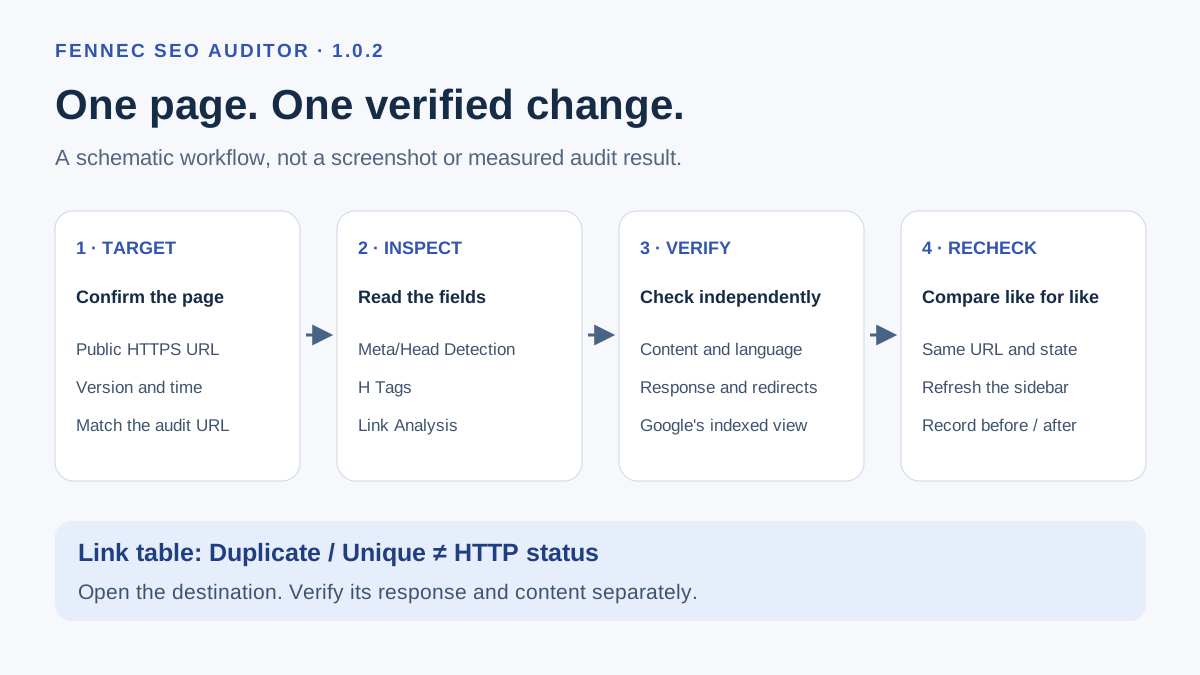
1. Open one public page and match the sidebar to its URL
Use the Fennec extension with a public HTTPS page you can revisit. This walkthrough was tested on the official Chrome Web Store version 1.0.2 on October 17, 2026, using an unsigned-in Chrome profile and https://fennecseo.app/extension/. The tested sidebar used Chinese labels; English descriptions below include those labels so you can find the same controls. Check your installed version in Chrome’s extension details before comparing results.
- Open the page and wait for the relevant content to finish loading.
- Open Fennec from Chrome’s extension menu, or select its pinned Open Side Panel action.
- Expand the sidebar’s top-left menu and choose Comprehensive Audit (综合审计). Wait for the loading placeholders to become values. Compare the displayed page URL with the active tab before reading findings.
- Use Meta/Head Detection (Meta/Head检测), H Tags (H标签) and Link Analysis (链接分析) for the focused checks below.
- After navigation or a change, use the sidebar’s refresh control and check the URL again. Do not assume an earlier result describes the new tab state.
Record the URL, version, time, language and whether you were signed in. Browser settings pages, extension pages and local file:// pages are outside this tutorial; use an ordinary public web page. A sidebar blocked on one of those pages is not an SEO defect.
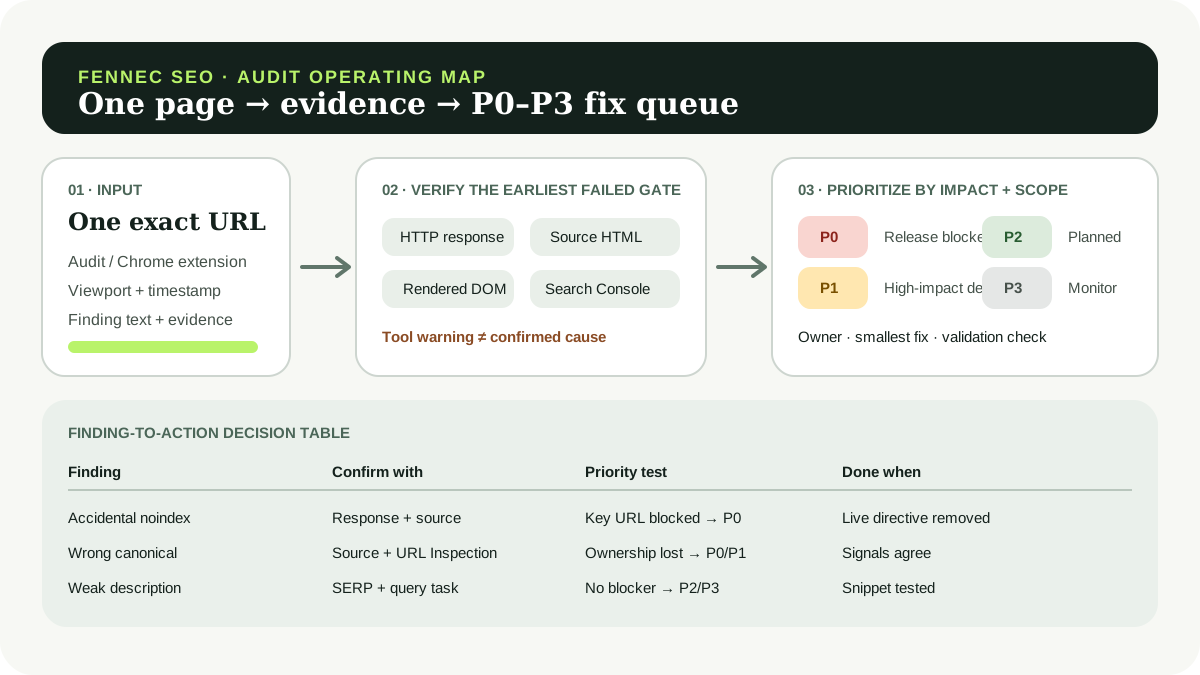
This is a workflow diagram, not a screenshot or a measured audit result.
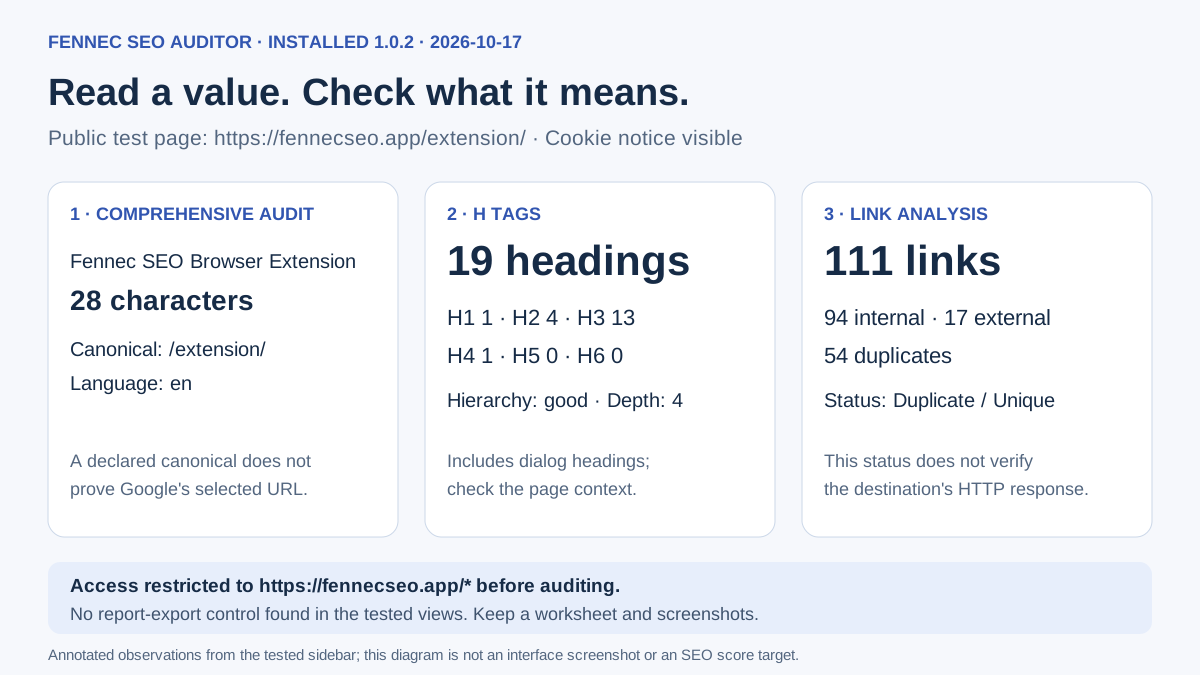
Observed on October 17, 2026 with the cookie notice visible. These values describe this page state, not targets for other pages.
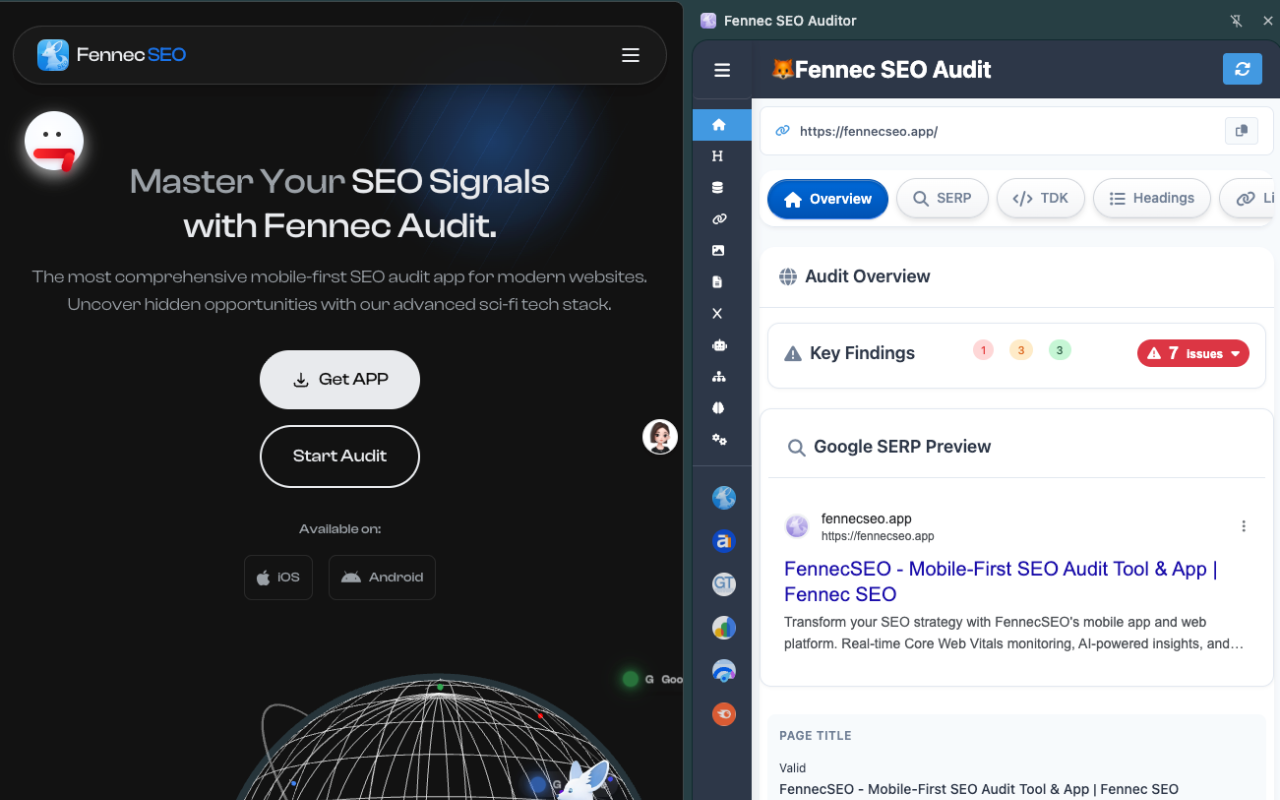
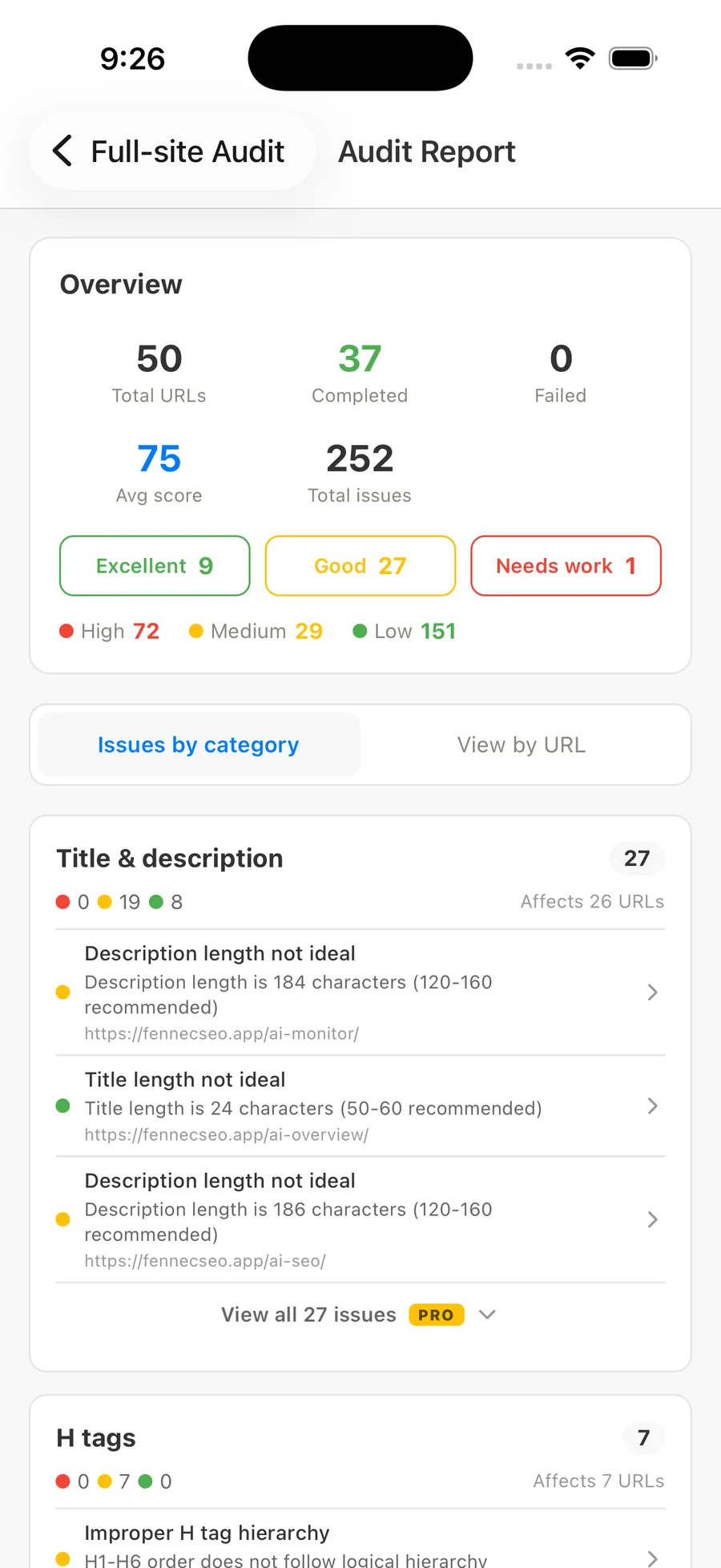
English interface preview from the extension product page. It shows a different page state from the October 17 test; the measured values above come from the tested 1.0.2 Chinese interface.
2. Compare title and head metadata with the page’s job
In Meta/Head Detection, compare the title and description with the actual page. Return to Comprehensive Audit for the canonical and document-language values. Do not treat every warning as a required edit.
The test page reported title Fennec SEO Browser Extension (28 characters), description length 157, canonical https://fennecseo.app/extension/ and language en. Its visible H1 was SEO Auditor in Your Pocket. Meta/Head Detection called the title short, while the overview marked it valid. Review the wording and page purpose instead of treating either label as Google’s verdict.
| Field | Useful question | Independent check |
|---|---|---|
| HTML title | Does it identify this page, not a reused template or another language? | Compare the DOM’s title with the browser title and page purpose. |
| Meta description | Does it describe what a reader can find here? | Inspect meta[name="description"]; avoid adding claims the page cannot support. |
| Canonical | Does the declared preferred URL represent this content? | Open the destination and compare its content, language and response. |
| Language | Does the declared language match the main text? | Inspect the document’s lang value and the visible content. |
The HTML title and visible H1 have different jobs. Neither needs to duplicate the other word for word. A title-length warning asks you to review clarity; it is not a fixed Google character limit. Google uses several sources for search-result title links, and truncation depends on display width. The sidebar’s preview is not a promise of the final search result.
A declared canonical is a signal, not proof of Google’s choice. For the distinction between a declaration and Google’s selected URL, see Google’s canonicalization guidance.
3. Read H Tags as an outline, not a ranking verdict
Choose H Tags and read the heading text in document order. On the test page, the tool reported 19 headings: H1=1, H2=4, H3=13, H4=1, H5=0 and H6=0; it marked the hierarchy good and depth 4. The outline also included cookie-dialog headings and gdpr.settings, beyond the main article sections. Counts can include hidden or dialog content; compare each item with the rendered page before treating it as a content defect.
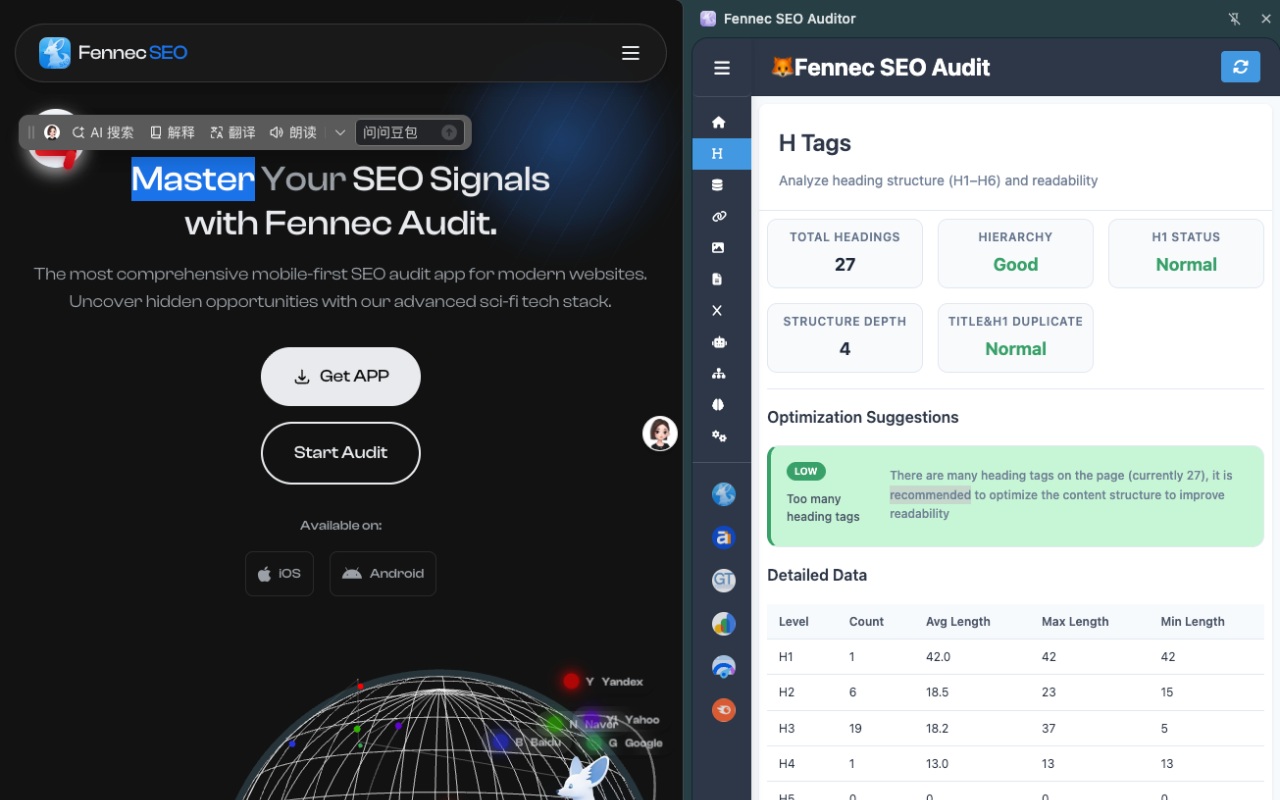
English H Tags preview from the extension product page. Its 27-heading example belongs to that preview; the October 17 test described above reported 19.
For example, this illustrative outline jumps from H1 to H3:
<h1>Delivery information</h1>
<h3>Delivery areas</h3>
<h3>Delivery times</h3>
If those are the two main sections under “Delivery information,” H2 is the more appropriate structural level. If they belong under an existing H2, keep that context and investigate why the report appears different. Check the final DOM, not just a CMS heading dropdown.
A repeated H1 or a level jump does not, on its own, prove a ranking loss. Use headings to make the page understandable. The technical SEO guide covers checks beyond this single-page outline.
4. Read Link Analysis status correctly, then open the destination
Choose Link Analysis and locate an important navigation or contextual link. Compare its anchor text, destination and rel attributes. In the tested 1.0.2 link table, Status (状态) means Duplicate (重复) or Unique (唯一). It is not the destination’s HTTP status. The page reported 111 links, split into 94 internal and 17 external, with 54 duplicates, 0 nofollow and 15 opening in a new tab. These include navigation links outside the main visible content.
Compare the displayed href strings yourself: the first /audit/ row was labelled Unique, and a later /audit/ row was labelled Duplicate. Repeating a useful navigation link is not automatically an error. Different strings may also redirect to the same final page, so “Unique” does not prove a unique final destination, a successful response or a working link.
For a suspect link:
- Open its destination from the original web page and check that the final URL and language are intended. In this test, relative URLs in the sidebar table resolved against
chrome-extension://…/, so clicking those table entries would not verify the website destination. For example, verify/changelog/ashttps://fennecseo.app/changelog/in the page’s own context. - Read the resulting content. A page can load successfully yet show an error message or the wrong product.
- To check HTTP behavior, use Chrome DevTools’ Network panel during a fresh navigation. Record the main document response and any redirect chain separately from the extension’s duplicate label.
- Compare the anchor text with what the destination actually provides. Check important links in the rendered DOM, especially after client-side navigation.
For missing-page diagnosis, use the soft 404 guide. Google’s crawlable-link guidance explains the role of <a href> and descriptive anchor text. Preserve appropriate sponsored, ugc and nofollow attributes; do not remove them to improve a score.
5. Separate browser observations from Google’s recorded state
| What you observe | What it does not establish | Next check |
|---|---|---|
| A title in the current browser DOM | The title currently shown by Google | Compare the search result and relevant Search Console information. |
| A canonical declaration | Google’s selected canonical | Inspect the indexed URL’s canonical information in Search Console. |
| A Unique link label | HTTP 200, a correct destination or crawlability | Open the destination; verify the response and content. |
| A robots or schema value | Indexing, a rich result or a ranking benefit | Verify the applicable response, directives and Google test results. |
Search Console’s URL Inspection tool separates indexed information from a live test. A successful live test does not guarantee indexing. Your signed-in Chrome tab can also differ from a crawler’s view; a browser DOM snapshot alone does not reproduce Googlebot.
The SEO audit workflow helps widen the investigation when a finding involves multiple pages. Use the prioritized fix-list guide to decide what to fix first. The AI search visibility scorecard covers evidence beyond a browser-page report; an extension finding does not guarantee an AI citation.
6. Keep a manual before-and-after worksheet
Use this worksheet for one confirmed issue at a time. The blanks are for your observations, not sample test results.
| Item | Your record |
|---|---|
| URL, time, extension version, language and login state | |
| Exact observed value and sidebar section | |
| Independent verification and result | |
| Confirmed defect, or signal requiring no change | |
| Specific change made | |
| Matching after-check and remaining uncertainty |
This is a manual record. No CSV, JSON or PDF report-export control was found in the tested 1.0.2 Comprehensive Audit, H Tags, Link Analysis or Meta/Head views, including the audit page’s bottom. No exported report was produced. The overview’s copy icon is beside the page URL; copying a URL is not exporting a complete report. Use your own worksheet and screenshots for this workflow; do not assume another version has the same export boundary.
After a fix, reload the page, refresh the sidebar and compare the same URL and conditions. Keep useful before-and-after screenshots, excluding personal data. A score change does not establish ranking recovery or search traffic growth.
7. Check permissions before using private pages
Review privacy information and Chrome’s displayed site-access settings first. The official 1.0.2 installation prompt requested permission to read and change data on all websites; its installed details also displayed browsing-history access. In the test profile, opening extension details → site access → On specific sites (在特定网站上) and adding https://fennecseo.app/ restricted host access to https://fennecseo.app/*. Refresh the settings page to confirm the saved scope before auditing. This host restriction does not remove the separately displayed history permission. See Chrome’s permission guidance for the distinction between API permissions and host access.
Reading a page locally does not mean every tool is offline: network-dependent checks can contact a server. Use public, non-sensitive pages for this walkthrough. Do not enable file or incognito access to follow it. Before sharing a worksheet or screenshot, remove account content, private URLs and sensitive query parameters.
This walkthrough is for manually inspecting one page and verifying a finding. For choosing a product surface, read the app-versus-extension comparison. Agent orchestration has a different workflow, covered in the OpenClaw integration guide.